
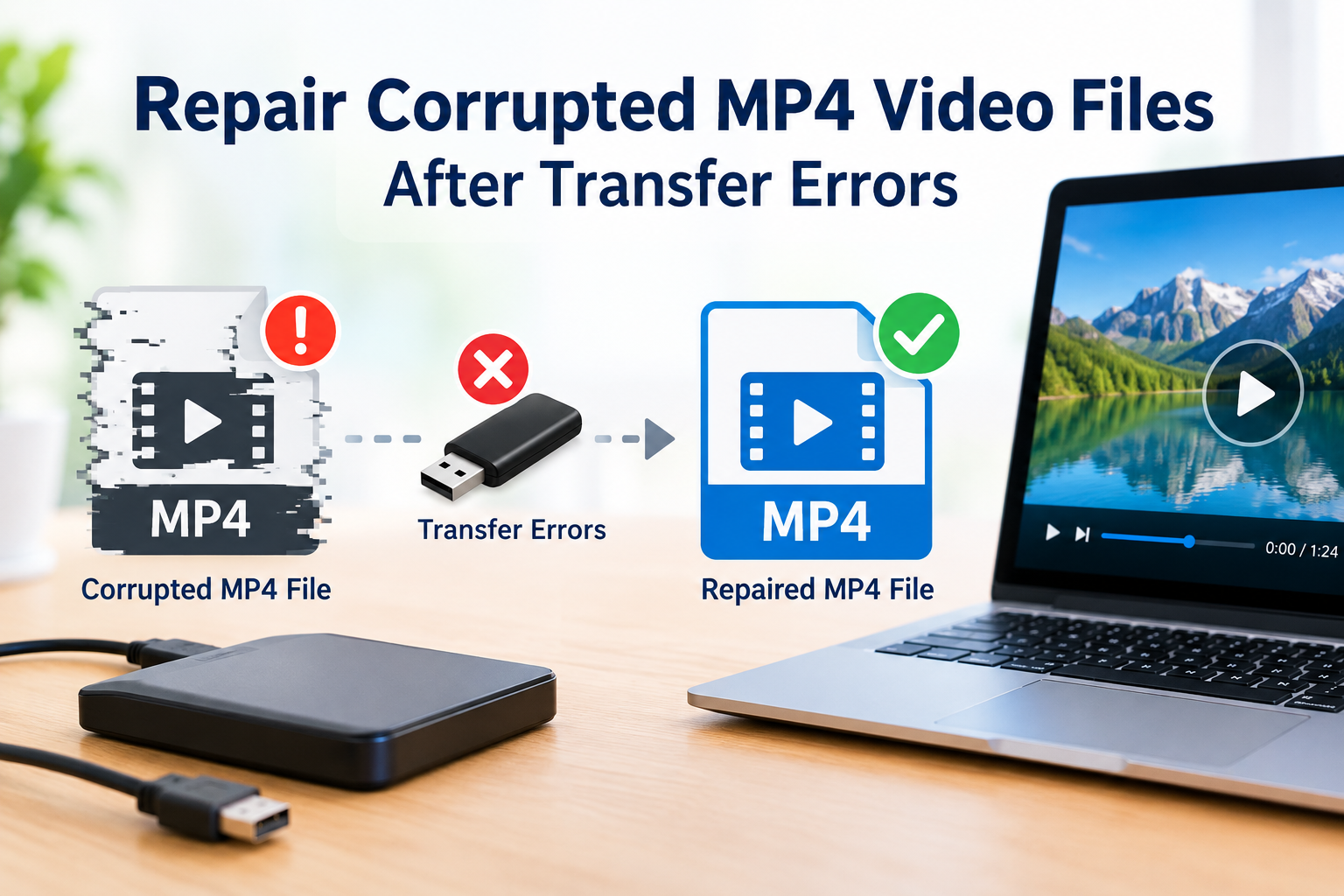
Suppose you transferred some important video from your camera or smartphone to your desktop, or from a friend’s phone to yours. But after a while, when you double-click the file, it does not play, returns a playback error message, video plays for a few seconds and freezes, or shows visual artifacts? Sometimes the player says – the file is damaged, the file cannot be played or the file isn’t supported.
Every user must have faced this once while transferring a video file, especially a large one or when sharing videos wirelessly across devices. This playback error is because of video corruption.
While the video is fine on the source device, something goes wrong on the way and the video file turns corrupted on the new device. The good news is that a transfer error does not always mean the footage is gone. If you are sitting with a corrupted or damaged file, don’t worry we can help you repair it.
Why do MP4 files get corrupted during transfer?
An MP4 file keeps its index (the metadata that tells a player how to read the video) in one specific part of the file. If a transfer stops early or skips data, that index can go missing or break. The file is then there, but it cannot be played.
Here are the most common reasons this happens:
- Interrupted copying. A pulled cable, a power cut, a low battery or a laptop going to sleep can stop the copy halfway.
- Faulty hardware. A damaged USB cable, a loose port or a cheap card reader interrupt data transfer without any warning.
- Unsafe removal. Unplugging a drive or card before the system finishes writing leaves the file incomplete.
- Network drops. Wi-Fi breaks, interrupted cloud syncs and messaging apps that trim files can all damage a video in transit.
- Storage problems. Bad sectors, a nearly full drive, or a FAT32 drive that cannot hold files above 4 GB can leave you with a broken copy.
- A damaged original. Sometimes the file was already damaged on the source device, and the transfer only exposed it.
Why can’t you just transfer it again?
If the original file is still safe, the simplest fix is to copy it again. Use a different cable, a different port or a different card reader. Check that the size of the new copy matches the original. Most of the time, that solves it.
But there are cases where this does not work:
- The source device is no longer with you. The phone was reset, the card was formatted, or the camera was returned.
- The file came from a client, a friend or a download link that has expired.
- The card or drive is failing, so every new transfer corrupts the file again.
In these cases, you have to repair the corrupted copy you already have. That is where a video repair tool helps.
Method 1: Repair the MP4 in your browser with Stellar Online Video Repair
If you do not want to install anything, or you are on a shared or work computer, Stellar Online Video Repair is a good place to start. It is a secure, browser-based service. It works from desktops, laptops and mobile devices.
Key Features of the Online tool
- Repair on any device’s browser, no installation
- Uploads up to 5 GB of video file
- SSL-secured upload for all video formats
- Repair does not reduce the original video quality
- A free plan repairs one file up to 100 MB, with a preview of the repaired video
Steps to repair
- Open Stellar Online Video Repair in your device’s browser. Sign Up with an email and password.
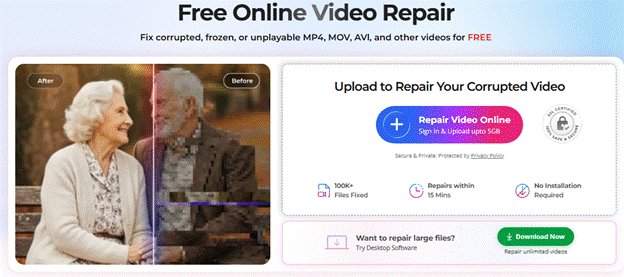
- Upload the corrupted MP4 file.
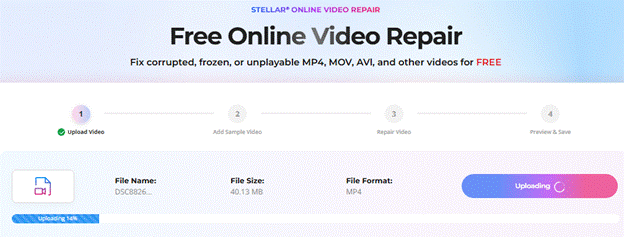
- Add a sample video. This is a healthy file shot on the same device and in the same format.
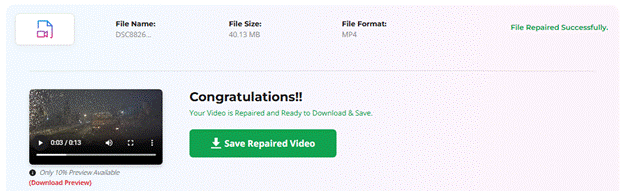
- Click Start Repair and wait while the tool fixes the file.
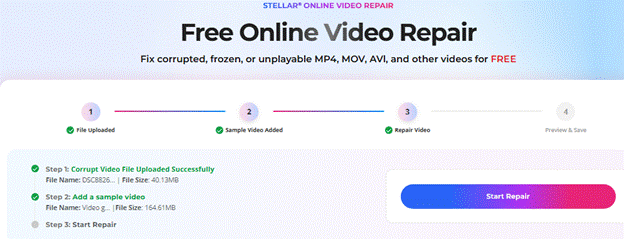
- Preview the repaired video. If it looks right, save it to your device.
We did not pay a single penny for this repair as this was absolutely free of cost.
Method 2: Fix the MP4 or video file with Stellar Repair for Video (Desktop)
Some MP4 files are too large for a browser upload. Some are too badly damaged for a quick fix. Other times you have a whole folder of broken clips. For all of these, MOV or MP4 video corruption issues, an MP4 Video Repair tool such as Stellar Repair for Video is the stronger option. It runs on both Windows and Mac.
Key Features of the Desktop tool
- No limit on file size, so 4K and larger videos are fine
- Batch repair of unlimited files, even in different formats
- Support for 17+ formats, including MP4, MOV, M4V, MKV, AVI and 3GP
- Advanced Repair, which uses a sample file to fix severely corrupted videos
- Works on videos from cameras, phones and drones
- A preview of the repaired video before you save it
Steps to repair
- Download, install and launch Stellar Repair for Video on your PC or Mac.
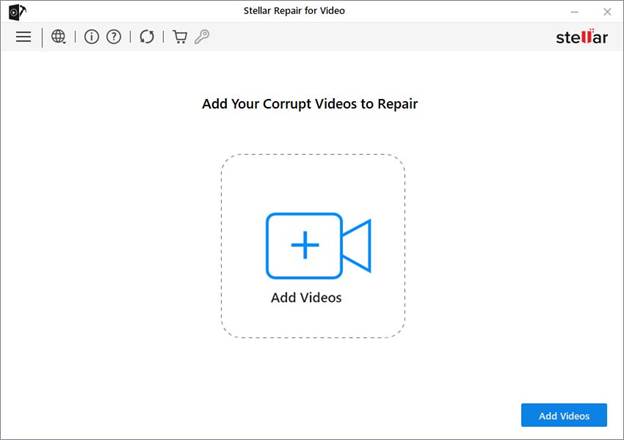
- Click Add Video and select the corrupted MP4 files. You can add many at once.
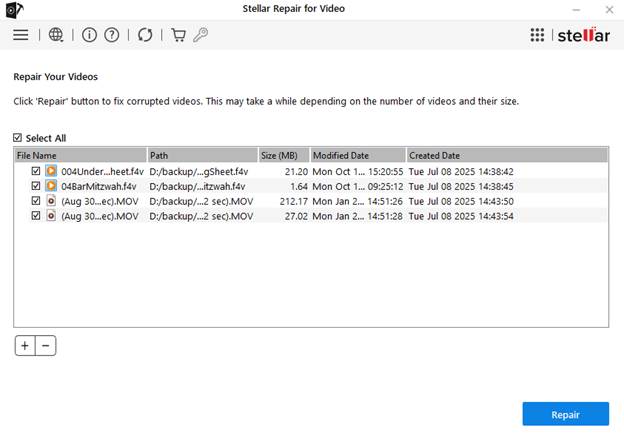
- Click Repair and let the software scan and fix the files.
- If the damage is severe, the software suggests Advanced Repair. Add a sample file from the same device and run it.
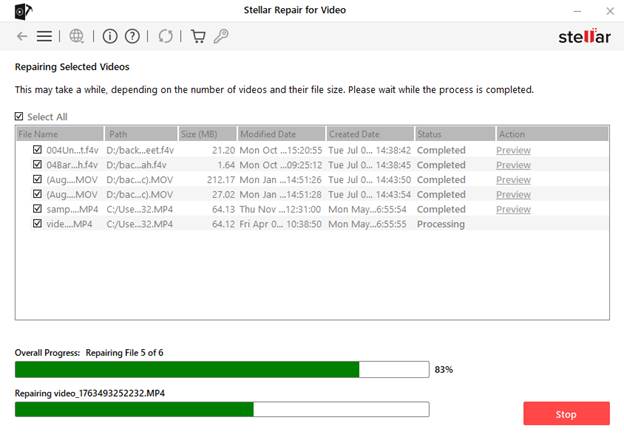
- Preview the repaired videos and save them to the location you want.
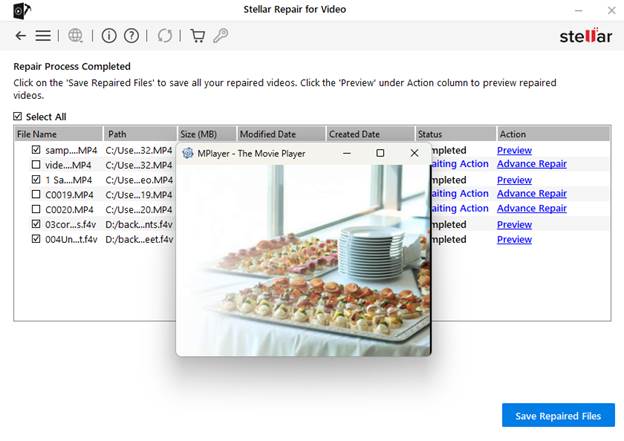
The free demo lets you preview the repaired video up to 20% of its size, so you can check the result before you decide to buy the repair tool.
Which one should you use?
Both tools use the same repair approach. The difference is how and where you use them.
| Stellar Online Video Repair | Stellar Repair for Video | |
| Device | Any browser, no installation | Windows and Mac desktop software |
| File size | Up to 5 GB per file | No file size limit |
| Batch repair | Plan covers 10 files a month | Unlimited files, mixed formats |
| Free option | Repairs 1 file up to 100 MB | Free download and repair but saving file requires a paid subscription |
| Best for | Quick fixes, small to mid-size clips, no software access | Large 4K files, many files batch repair |
| Money Back Guaranteed | No | Yes, 30 Days |
Both tools are similarly capable, hence, a smart decision is to start online if the file is small and you want a fast fix. Move to the desktop software if the file is big, there are many files, or the online tool does not suit your needs.
Manual methods you can try first
Manual fixes are worth a quick try, though they only help with minor damage:
- Copy the file again with different hardware. Try another cable, port or card reader, or copy the file from the original card if you still have it.
- Try VLC Media Player. Renaming the file to .avi and turning on VLC’s “Always fix” option for damaged files can rebuild the index in some cases. Results vary, so keep the original copy safe.
How to Avoid Corrupt Transfers from Next Time?
- Always eject the drive or card safely.
- Make sure the destination has enough free space.
- Avoid copying when the battery is low.
- Use a good cable and a reliable card reader.
- Keep the original on the card until you have played the copy.
End notes
Even after a transfer error, your video is often still repairable. If you can copy the file again, do that first. If you cannot, or if the new copy fails too, a repair tool is your next step. Stellar Online Video Repair gives you a quick, no-install fix, and Stellar Repair for Video handles large, severe and batch cases on your desktop. Between them, you can cover almost any corrupted MP4 situation. Stellar has been working in data care for years and serves over 3 million customers across more than 190 countries.
DISCLAIMER – “Views Expressed Disclaimer – The information provided in this content is intended for general informational purposes only and should not be considered financial, investment, legal, tax, or health advice, nor relied upon as a substitute for professional guidance tailored to your personal circumstances. The opinions expressed are solely those of the author and do not necessarily represent the views of any other individual, organization, agency, employer, or company, including NEO CYMED PUBLISHING LIMITED (operating under the name Cyprus-Mail).





Click here to change your cookie preferences